

Free Voice Dictation Keyboard for Mac & Windows | SpeakApp
SpeakApp is a free voice dictation keyboard for Mac and Windows. Write across apps with an advanced local model that keeps your dictation on your device.
2 min read
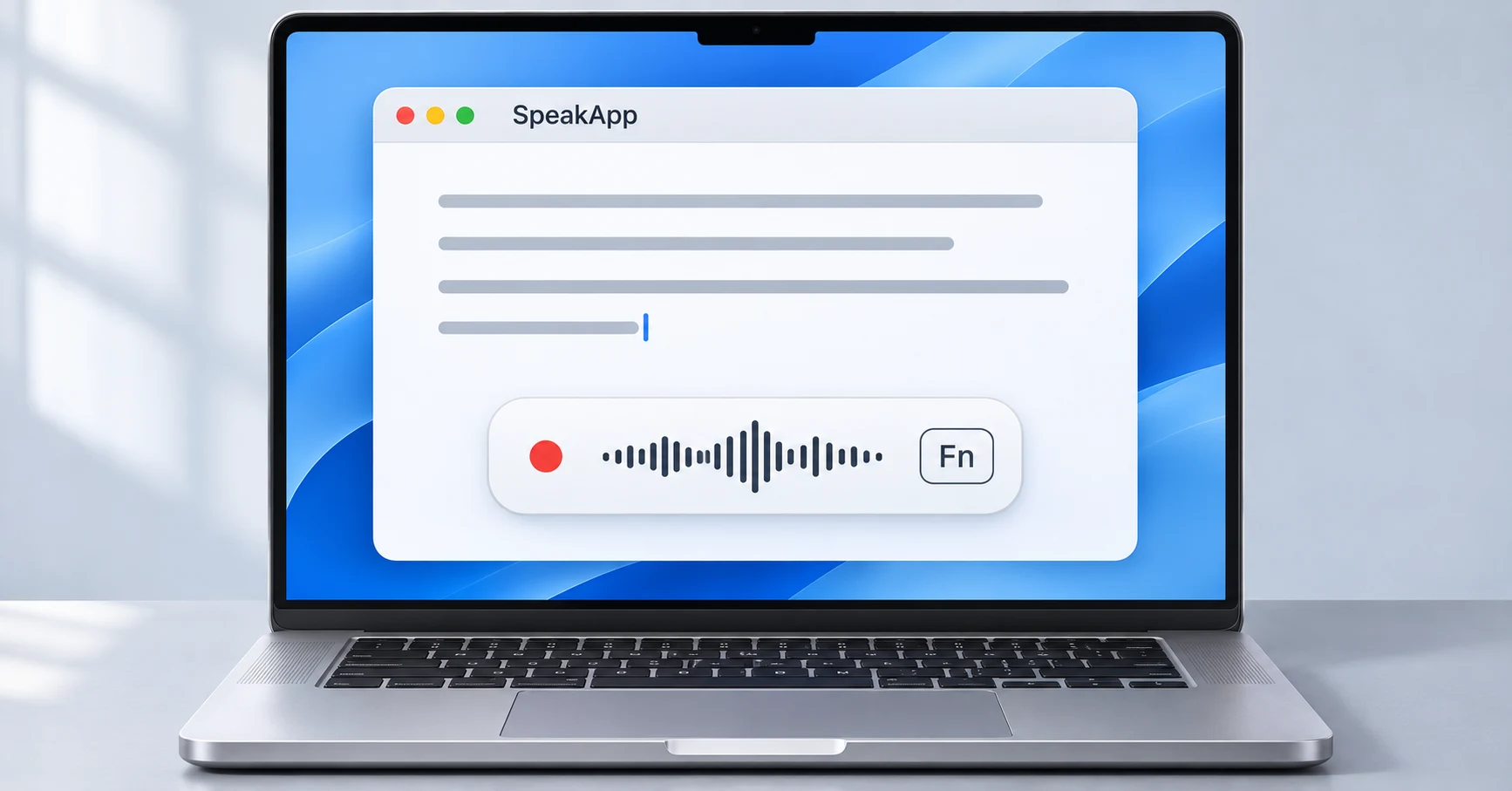
SpeakApp gives you a free voice dictation keyboard for Mac and Windows. Click a text field, activate your dictation shortcut and speak. SpeakApp turns your voice into text in the app you are using, with an advanced local model that runs on your device.
Your dictation audio and text stay on your computer. And the dictation feature is completely free.
Write with your voice across your apps
Use SpeakApp wherever you write in supported text fields: emails, documents, notes, messages and AI prompts. You can move between apps and keep using the same dictation shortcut.
Think of it as a voice keyboard for your desktop. You speak instead of typing, and the text goes where your cursor is. There is no separate document to export before you can use what you said.
An advanced local model keeps dictation private
SpeakApp processes dictation with an advanced speech recognition model running directly on your Mac or Windows PC. Your dictation audio and text do not leave the device for processing. There is no upload to a cloud transcription service.
After the initial model download and setup, dictation works offline too. You can write with your voice when your connection is unreliable or when you prefer to keep speech recognition entirely on your computer.
This applies to SpeakApp's local dictation feature. The app you dictate into may still sync the resulting text according to its own settings.
Free dictation, powered by your device
Local processing makes free dictation possible: your computer does the speech recognition work. You do not need a paid dictation subscription.
SpeakApp offers other paid features, including tools for working with recordings and meetings, but those are separate from free dictation. You can try voice typing without paying for those features.
How to start dictating on Mac or Windows
- Download SpeakApp for your computer and open the dictation setup.
- Download the local speech model and grant the permissions requested during setup.
- Choose your dictation shortcut, then click the text field where you want to write.
- Hold the shortcut, speak naturally and release it to finish. Review your text before sending.
That's it: keep writing in the apps you already use, with your voice doing the typing.
Quick answers
Is SpeakApp's voice dictation keyboard really free?
Yes. Dictation is completely free on Mac and Windows. Other SpeakApp features may be paid, but a paid subscription is not required for dictation.
Does it work without internet?
Yes. Once the local model is downloaded and setup is complete, you can dictate offline. The destination app determines whether you can save or send the resulting text without internet.
Do I need a different keyboard?
No. SpeakApp adds voice typing through a desktop shortcut. You keep your existing keyboard and switch between speaking and typing as you like.
Download SpeakApp for Mac or Windows and try free dictation.